
Registration & Security
How to register in FLEEK X?
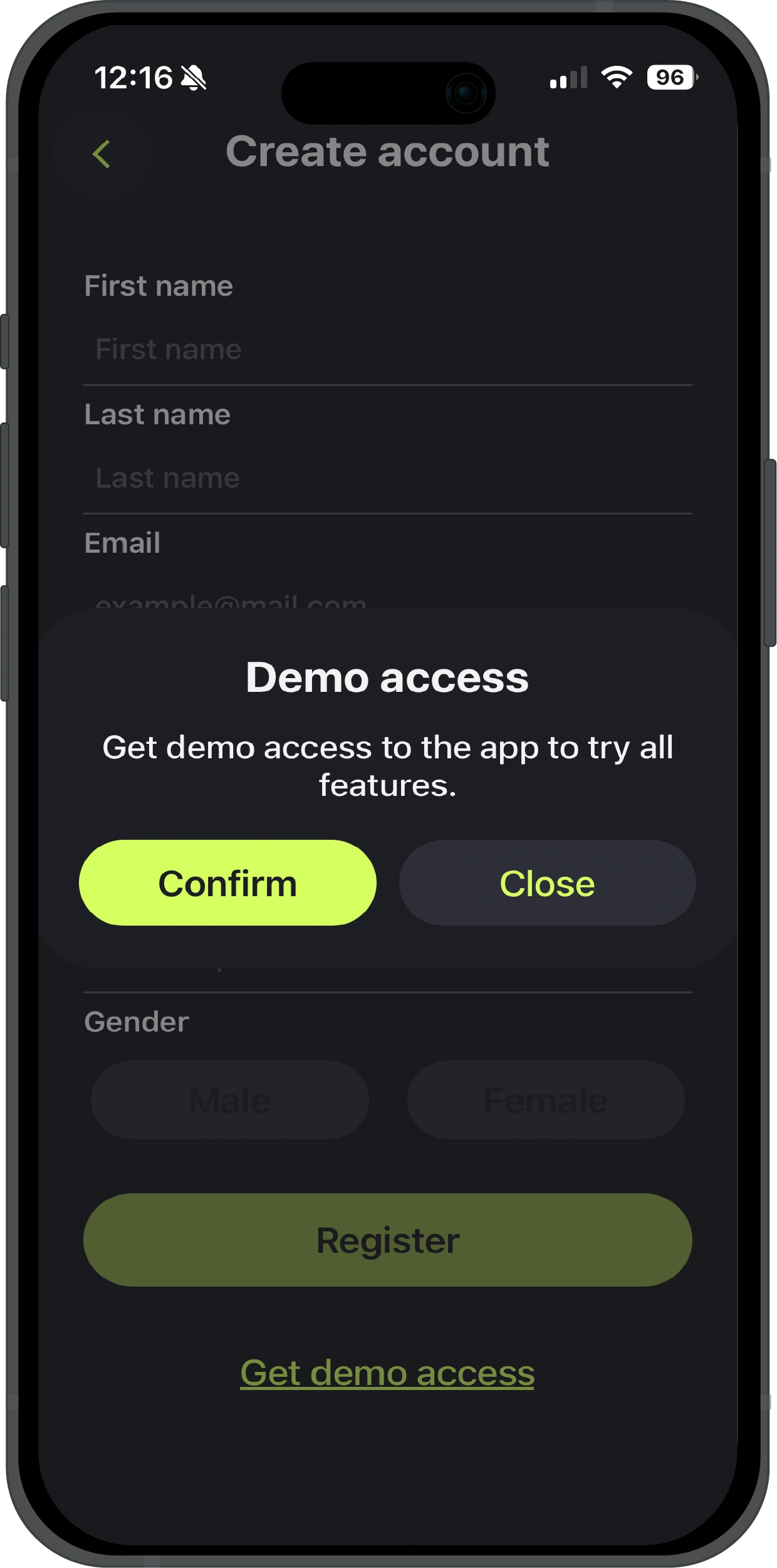
Go to 'Sign Up' section and fill in the required fields: First Name, Last Name, E-mail, Date of Birth, Gender (affects load calculations). Password must contain at least 8 characters including letters and special characters. Confirm your password and complete registration.
What is demo mode?
Demo mode is intended only for viewing the app's functionality. In demo mode, you cannot perform any actions — only get familiar with the interface.
What to do if I forgot my PIN code?
PIN code is set immediately after registration. If you forgot your PIN code, simply log in using your e-mail and password. The app will automatically suggest setting a new PIN code.
How to recover password?
On the login screen, click 'Forgotten Password', enter your e-mail. A new temporary password will be sent to your email. After logging in, it is recommended to immediately change your password in the 'Edit Profile' section.
Important: The company is not responsible for hacking your email or unauthorized access to it.
Can you provide my password?
No, we cannot. Your password is stored in encrypted form. Even company employees do not have access to your password.
Why specify gender during registration?
Gender affects calculations of physical loads, metabolism and training recommendations. This allows us to make personal recommendations more accurate and effective.
How to start a workout
App Navigation
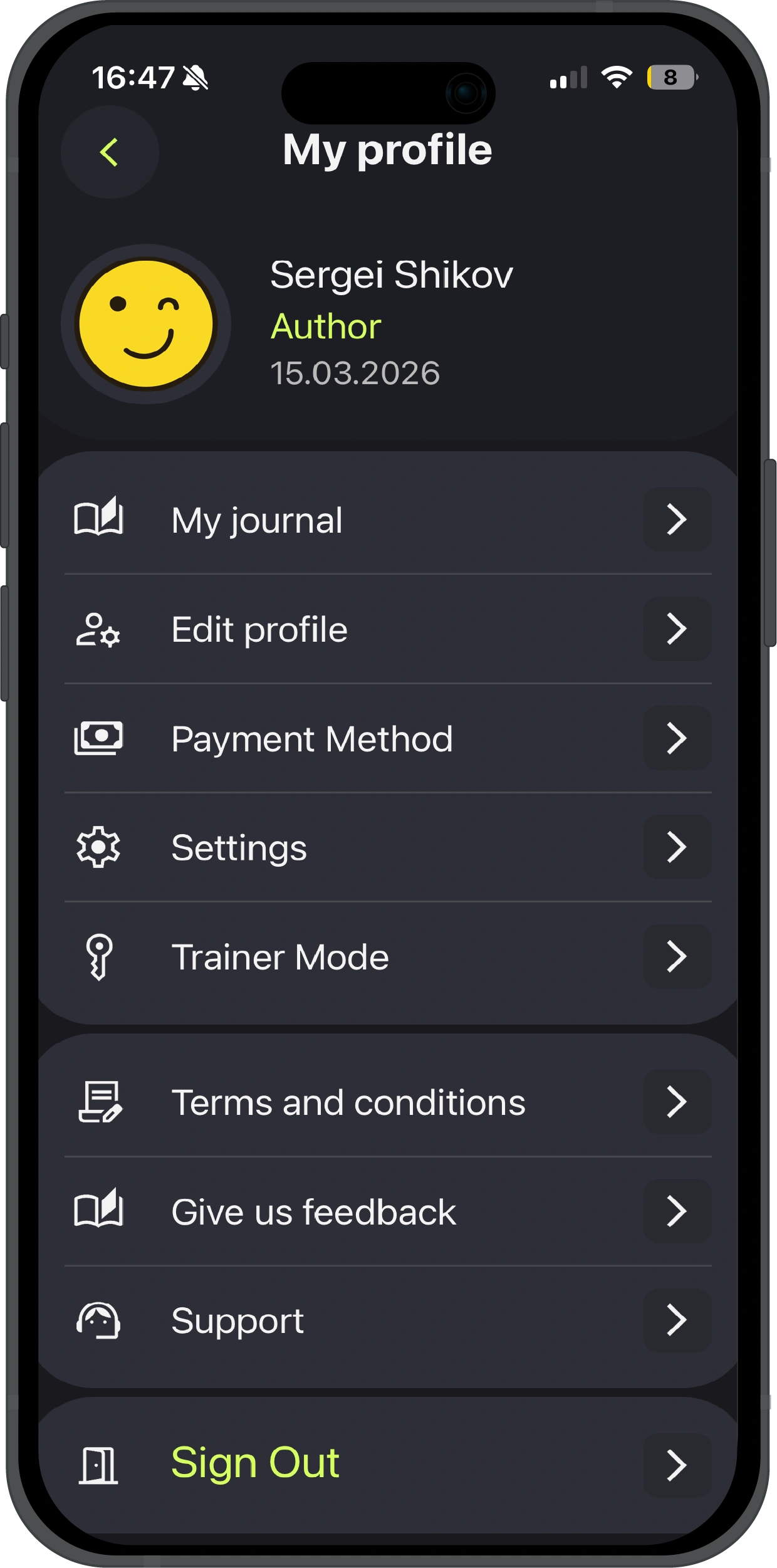

After logging into the app, you are taken to the main menu. To access account settings, edit your profile, read legal information, enter the trainer menu, change payment details, or view transaction history - simply tap on the avatar located in the top left corner of the screen. To go back, press the back button which is also located in the top left corner. To change the theme or language, go to settings and make the necessary changes.
How to choose a workout
To select and start a workout, press the 'Add' button. This button is located in the bottom menu at the center and is circular in shape with a plus sign inside. Pressing it takes you to a menu with various activities where you can select your desired workout. To select, tap the bookmark in the top right corner of the workout tile, then confirm the action.
How to complete a workout
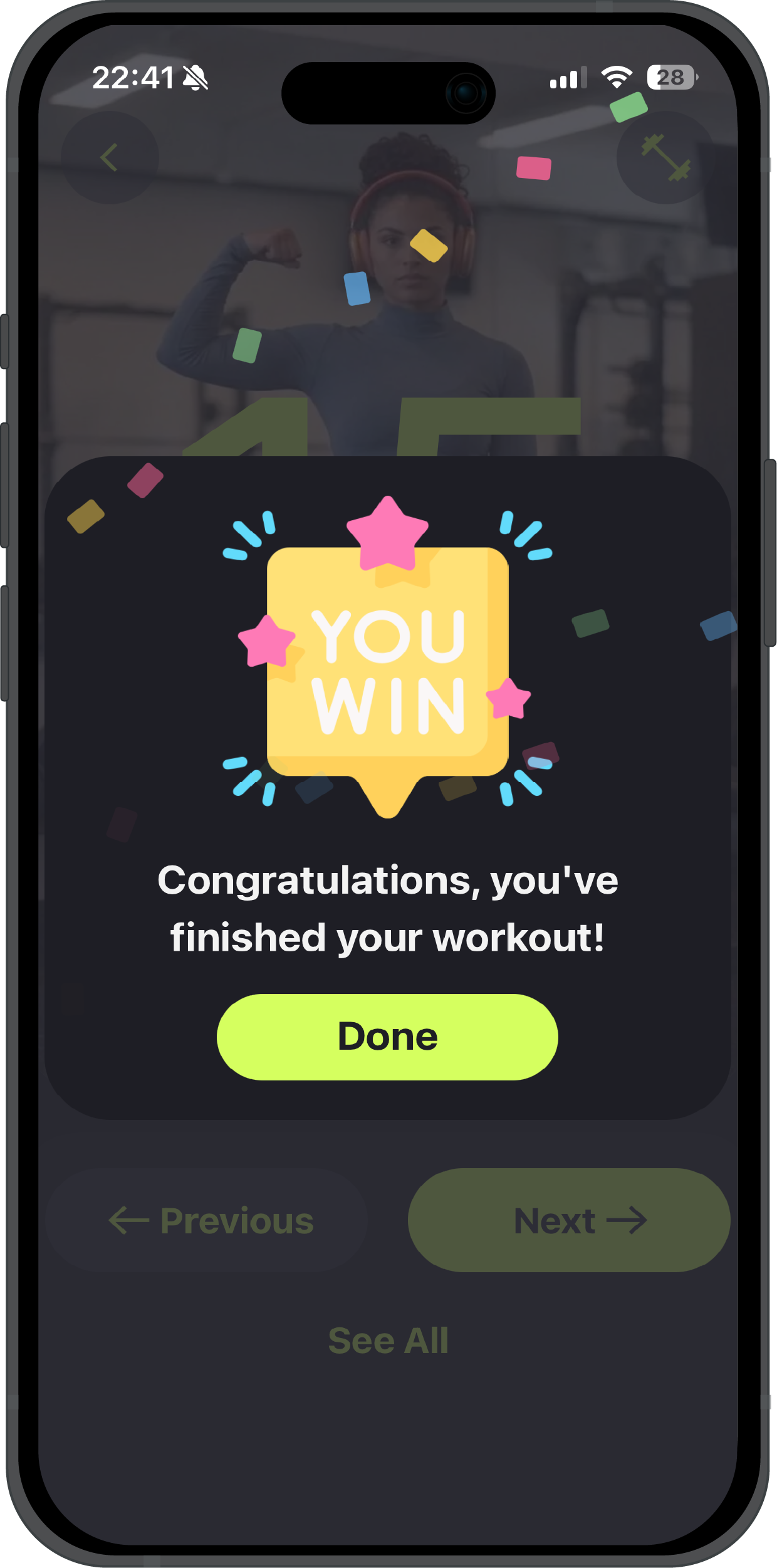
- Planned workout: completes only at the end of the plan. You need to complete all stages of the workout.
- Forced completion: if you want to complete a planned workout early, you need to scroll through the workout to the end of the plan and press the 'Complete' button.
- Unscheduled workout: this is a workout designed for one day that can be repeated daily as needed. Such a workout is completed by pressing the 'Complete' button, which appears if you exit the workout and try to enter again. In this case, the system will suggest either continuing the workout or completing it.
Workout Menu
How to use the workout screen
Number of repetitions

Large numbers show how many repetitions to do. They are dynamic - meaning they will change depending on the recommended number of repetitions.
Number of sets
Below the large numbers there is a sets scale, as well as a duplicate number under the scale showing how many sets in total and how many have been completed.
How to record weight
To record weight, click on the barbell icon in the top right corner. You can record weight for each set. All records are strictly tied to the exercise and the number of sets. For a new exercise, the field will be empty until you make an entry.
How to view exercise technique
To see how to do the exercise correctly, click on the exercise name on the main workout screen (it's located right below the large repetition numbers).
How to view the full exercise list
To view the full list of workout exercises, open the additional menu at the bottom of the screen.
How to complete a workout
To force complete a workout, you need to scroll to the very end of the entire plan. After finishing a workout day, simply exit the workout. When you want to continue again, just press the 'Continue' button.
Exercise navigation
If you scroll past an exercise, you can go back to it. But if you scroll past an entire day, you cannot go back to that day — only forward.